
Getting Started with Android Studio and Claude Code
InfernoRed developer Charlie Castro shows you how to use Claude Code to build an Android app right from your terminal. Learn how to ship features faster, track down bugs, and generate production-ready Jetpack Compose code, all through simple, conversational prompts.

The buzzword of the century is AI. Will it take over the world? Are we going to be ruled by Skynet, Ultron, or HAL 9000? Is it a bubble or something else? My take on AI is that it is a tool. A powerful tool that can help make the lives of everyone just a little bit easier and better. For us developers, it is a great tool that can unlock our thinking potential and elevate us to new heights.
AI is here to stay and is changing every aspect on how we code. Android is no exception. With the introduction of Claude Code, Android developers can pair up with AI to deliver high quality code with ease. This blog will showcase how to integrate AI with Android Studio using the Claude code CLI to allow developers to use the full potential of AI when delivering code.
But first… What is a Coding Agent?
Think of coding agents as a junior developer that you have at your service. One that is eager to work, never sleeps, never drinks loads of coffee and knows every document and every detail about the project you are working on.
Unlike "traditional" AI chatbots that gives answers to questions and has to be explained the context every time, AI agents can read your files, write code, run commands, fix errors, and iterate on its own work until the job is done.
There are a lot of different agents, used for a variety of purposes, today we are limiting our scope to Claude Code.
So, What is Claude Code?
Claude Code is Anthropic's coding agent, built on top of Claude — one of the most capable AI models available today. It lives in your terminal as a CLI tool and connects directly to your codebase. No copy-pasting into a chat window, no context lost between conversations. Claude Code reads your project files, understands the structure of your code, and works alongside you without needing coffee, bagels, or beanbags!
Out of the box, Claude Code can do a lot, like:
- Read and edit files across your entire project
- Run terminal commands like Gradle builds and ADB commands
- Understand errors and fix them iteratively
- Generate boilerplate, components, and full features from a simple description
- Explain existing code so you can onboard faster to any codebase
For this guide, I'll assume you're an Android developer with an active Claude subscription, have Android Studio installed, and have some comfort using the terminal. With that said, let's get started.
Setting Up Claude Code
Getting Claude Code running takes only a few minutes, but there are a couple of prerequisites before you install. You'll need Node.js 18 or later installed on your machine. You can verify this by running:
node --versionIf you're not on 18+, head over to nodejs.org and grab the latest LTS version before continuing. Claude Code draws from your subscription, so make sure you're signed in at claude.ai before the next step. Once those are in order, install Claude Code globally via npm:
npm install -g @anthropic-ai/claude-codeNow here's the part most guides skip: authentication. The first time you run Claude Code, it needs to connect to your Anthropic account. Navigate to your Android project folder using the terminal and then launch it using:
claudeOn first launch, Claude Code will automatically open a browser window and take you through an OAuth login flow. Sign in with your Anthropic account, authorize Claude Code, and you're done. Your credentials are stored locally on your machine and that's a one-time step — after that, Claude Code launches instantly every time.
Your Project's Memory: CLAUDE.md
Before writing a single prompt, there's one file worth setting up: CLAUDE.md. Think of it as a PlayStation 2 "memory card" but for your project. Every time Claude Code launches, it reads this file first — so anything you put in here, Claude knows from the very first message without you having to explain it. This keeps Claude from making incorrect assumptions and helps maintain context and scope.
For an Android project, create a CLAUDE.md file at the root of your project and drop in things like:
# My Android App

## Build
./gradlew assembleDebug

## Run Tests
./gradlew test

## Stack
- Kotlin
- Jetpack Compose
- MVVM Architecture
- Hilt for dependency injection

## Conventions
- All UI in Compose, no XML layouts
- ViewModels should not reference Android framework classes directly
- Use StateFlow for UI state
That's it. Now Claude knows your stack, your build commands, and your conventions — without you having to repeat yourself every session. The more relevant context you put in here, the more accurate and consistent Claude's output will be. For the simple app we are building today, this will suffice.
A Few Features Worth Knowing
Claude Code has a lot of features that are worth getting familiar with before you start building.You don't have to be a Pokemon Master and know them all on your first day in order to work with Claude Code, but here are a handful that will save you time.
@ File References — You can point Claude directly at a specific file using the @ symbol. Instead of saying "look at my ViewModel," you can type @app/src/main/.../MyViewModel.kt and Claude will read that file immediately. Great for focused, targeted changes.
Slash Commands — Claude Code comes with built-in commands that help you manage your session. A few handy ones:
/clear— Clears the conversation history. Use this often when switching tasks so Claude isn't carrying stale context into a new problem./compact— Summarizes the conversation to save context space on longer sessions./model— Lets you switch between Claude models on the fly.
Plan Mode — Before Claude makes any changes, you can ask it to plan first. Just hit Shift + Tab to toggle Plan Mode. Claude will outline exactly what it intends to do and wait for your approval before touching a single file. This is especially useful when tackling something larger than a one-liner fix.
/model opus then switch to Plan Mode with Shift + Tab. This runs Claude Opus — Anthropic's most powerful model — in planning mode only. You get Opus-level thinking to architect the solution, and once you approve the plan, you can switch back to Sonnet for the actual implementation. Best of both worlds: top-tier reasoning on the plan, speed and efficiency on the build.Building a Simple Counter App
Let's put Claude Code to work with a classic: a Counter App. Simple enough to follow along, but a perfect way to see Claude Code in action.
Create a new Android project. Use an empty activity and give it a name. I recommend API 26 as the minimum SDK. After the IDE finishes creating the empty project and Claude Code running in the terminal, type the following prompt:
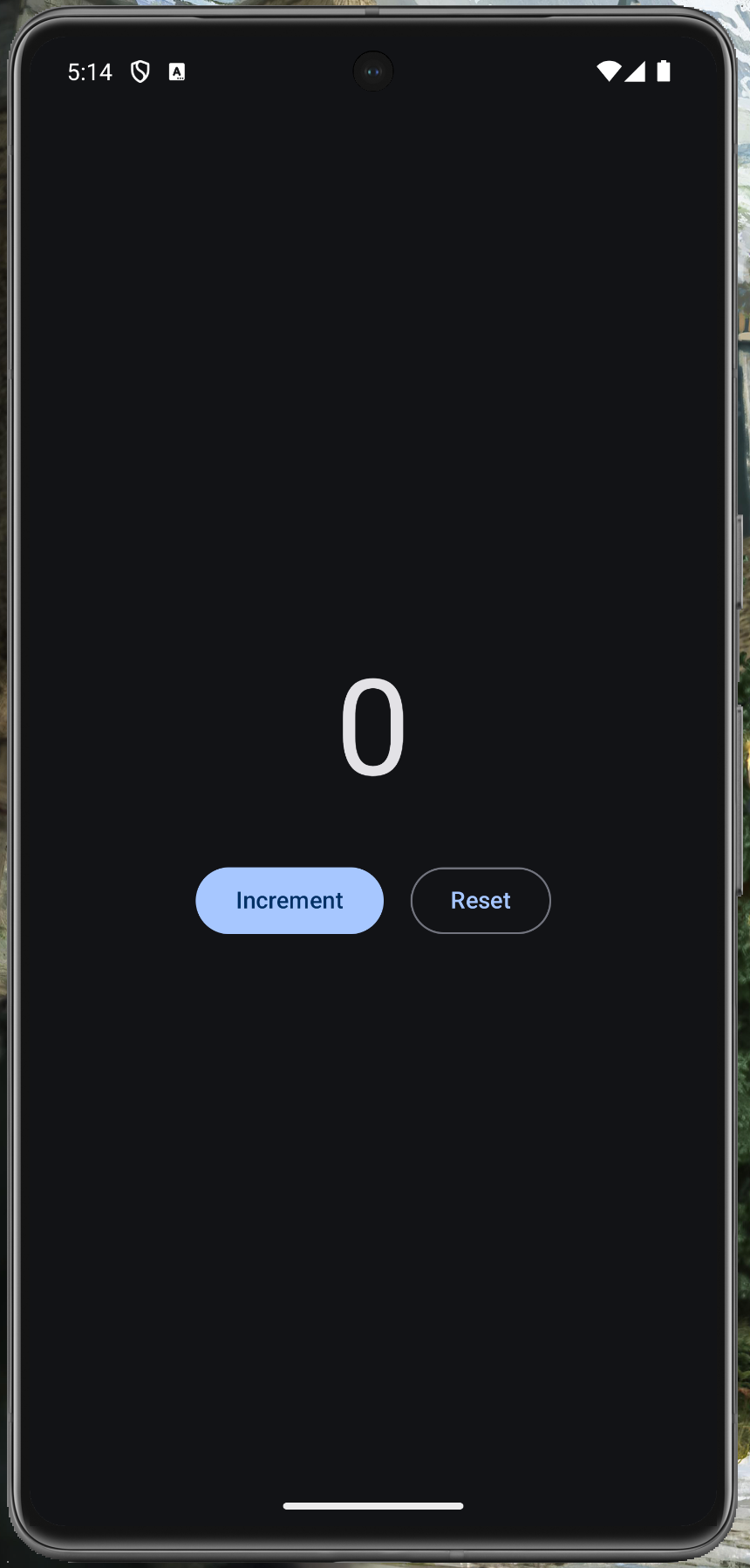
Create a simple counter app in Jetpack Compose.
It should have a number displayed in the center of the screen, a button to increment it, and a button to reset it back to zero.
And just like that, Claude Code turns AI magic into code. It pulls your project conventions from CLAUDE.md, scans your existing structure, and starts building Composable views, ViewModels, dependency injection, everything you need to get the requirement up and running. Not just code snippets you have to stitch together, but a complete, ready-to-run feature. Hit Run in Android Studio and there it is — a working counter app, built with a single prompt. What a time to be alive!
Where It Gets Really Interesting
That example is very simple by design, but the real power of Claude Code shows when things get more complex. Made a mistake? Ask Claude Code to fix it. Getting a Gradle build error? Paste it into the terminal and let it resolve the dependency conflict. Want to add a feature? Describe it in plain English and watch it iterate. The only limit is your creativity and, of course, your token allowance.
Final Thoughts
Claude Code is not here to replace Android developers. It is here to remove the friction that slows us down — the boilerplate, the repetitive fixes, the time spent looking up syntax. It lets you stay focused on what actually matters: building great apps.
We are at an exciting moment in software development. The developers who learn to work alongside these tools are going to move faster, build better, and spend more time solving the problems that actually require human creativity. Give Claude Code a shot — your future self will thank you.
Happy Coding!
"I need a Feature Image for a Claude code Blog I am making. I want to use myself , the claude code Mascot and a Android App. The Blog is about making Android Apps using Claude code. I want the art to be Pixel art."